Converting HTML files or webpages to PDF on your iPhone is easier than you might think. Whether you need to save an article for offline reading, archive a webpage, or turn a local HTML file into a shareable document, there are several methods available right from your iOS device.
In this guide, we’ll cover the best ways to convert HTML to PDF on iPhone—including using built-in iOS features and powerful online converters that work directly in Safari.
Method 1: Using Our Online HTML to PDF Converter in Safari (Recommended)
The most reliable and flexible way to convert HTML to PDF on your iPhone is by using a mobile-friendly online tool like HTML To PDF Converter by htmltopdf.live. It works directly in Safari (or any mobile browser) and gives you full control over the output—perfect for both webpages and local HTML files.
Why Use Our Online Converter on iPhone?
- Mobile-Optimized Interface: Designed to work smoothly on iPhone screens—taps, swipes, and uploads work perfectly.
- Full Customization: Adjust page size, orientation, and margins just like on a desktop.
- Handles Local Files: Upload
.htmlfiles directly from your iPhone’s Files app, iCloud Drive, or other storage. - Preserves Formatting: Renders complex layouts, images, and CSS correctly—no broken designs.
- No App Required: Works entirely in your browser—no downloads, no storage taken.
How to Convert HTML to PDF Using Our Tool on iPhone:
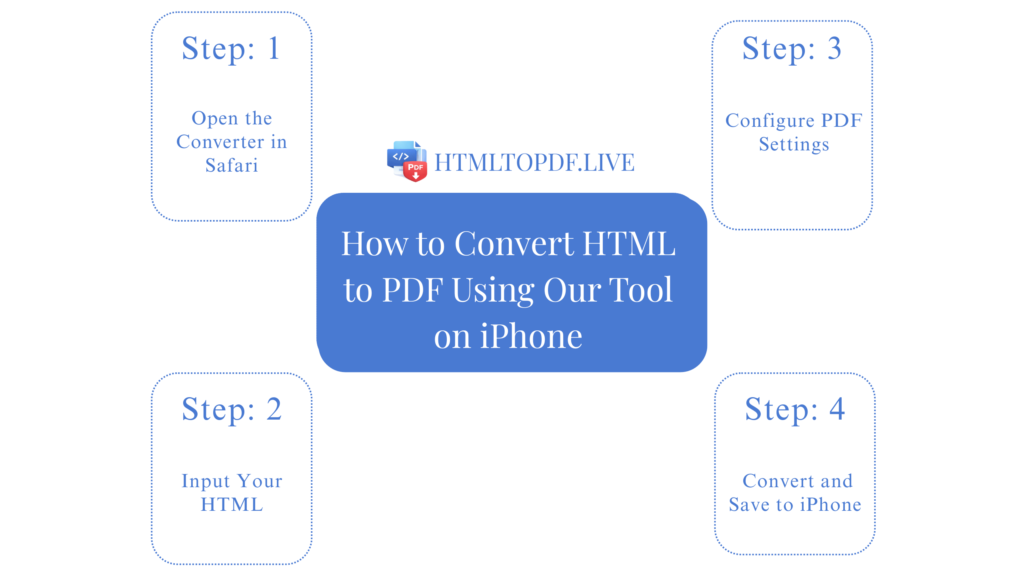
Step 1: Open the Converter in Safari
On your iPhone, open Safari and go to:
https://htmltopdf.live
Step 2: Input Your HTML
You have two easy options right from your iPhone:
- Upload an HTML File: Tap “Browse” to select a
.htmlfile from your Files app, iCloud Drive, Google Drive, or other connected storage. - Paste HTML Code: If you have the raw HTML code, tap the code box and paste it directly.
Step 3: Configure PDF Settings
Use the touch-friendly settings panel to customize:
- Page Size: Choose A4, Letter, or other sizes.
- Orientation: Tap Portrait or Landscape.
- Margins: Select Small, Medium, or Large.
As you adjust, the Live Preview updates instantly so you can see the final look before converting.
Step 4: Convert and Save to iPhone
Tap the “Convert to PDF” button. Once processed, tap “Download” to save the PDF directly to your iPhone’s Files app or photo library.
Step 5: Share or Open
Once saved, you can open the PDF in Books, Files, or share it via Messages, Email, or AirDrop.
✅ Pros: Free, professional results, mobile-optimized, no app install needed.
❌ Cons: Requires an internet connection for conversion.
Method 2: Using Safari’s Built-In “Export as PDF” Feature
iOS has a native way to save any webpage as a PDF directly from Safari-no extra tools needed.
Steps:
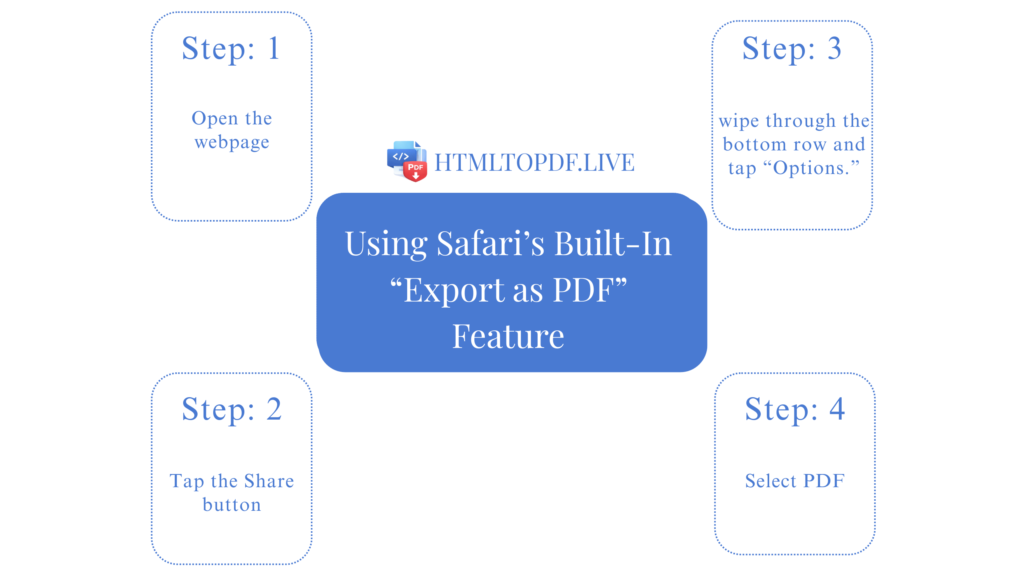
- Open the webpage you want to save in Safari.
- Tap the Share button (square with arrow) at the bottom.
- Swipe through the bottom row and tap “Options.”
- Select PDF (instead of Automatic).
- Tap “Done,” then choose “Save to Files” or “Print.”
- If you choose Print, pinch out on the preview to open the PDF and save it.
Best for: Quick saves of simple webpages.
Limitation: Only works for live webpages—not local HTML files. Limited formatting control.
Method 3: Using a Third-Party App
Several apps on the App Store can convert HTML to PDF, such as PDF Expert, Documents by Readdle, or Adobe Acrobat Reader.
General Steps (using Documents by Readdle as an example):
- Download the app from the App Store.
- Import your
.htmlfile into the app (via Files, cloud storage, or email). - Open the file and use the app’s Export or Print feature to save as a PDF.
Best for: Users who prefer offline apps and frequent conversions.
Limitation: Many apps are paid or have limits in free versions. May not handle complex HTML perfectly.
Which Method Should You Choose?
| Method | Best For | Ease of Use | Output Quality |
|---|---|---|---|
| Our Online Converter | Professional results, local files, customization | Very Easy | Excellent |
| Safari Export as PDF | Quick webpage saves | Easy | Good for simple pages |
| Third-Party App | Offline use, frequent conversions | Medium (requires app install) | Variable |
Tips for Perfect HTML-to-PDF Conversion on iPhone
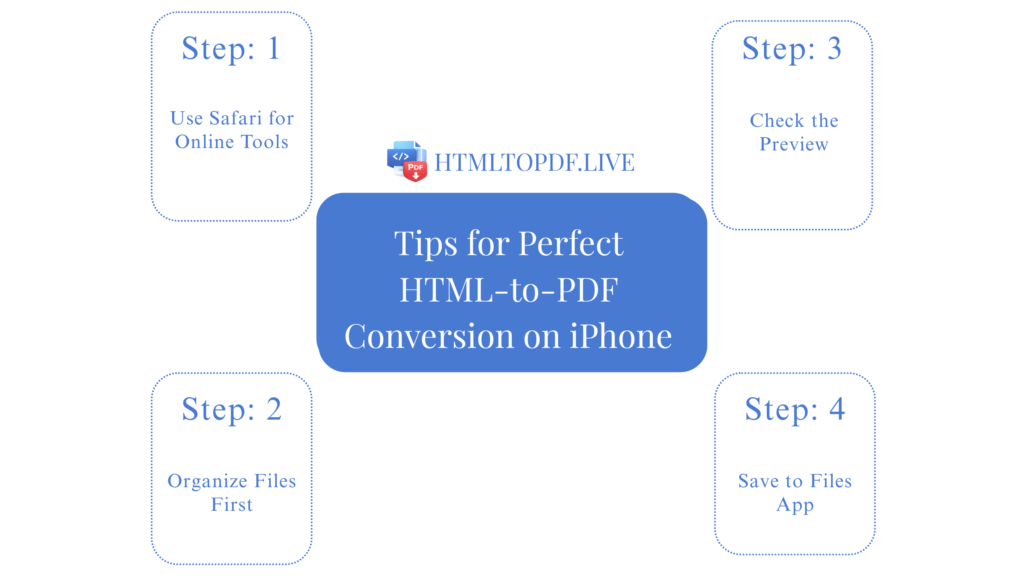
- Use Safari for Online Tools: For the best experience with web-based converters like ours, use Safari—it’s optimized for iOS and supports file uploads seamlessly.
- Organize Files First: If converting local HTML, ensure CSS and image files are in the same folder (or referenced correctly) before uploading.
- Check the Preview: Always use the live preview in online tools to avoid formatting surprises.
- Save to Files App: For easy access later, save your PDFs to the Files app in a dedicated folder.
Troubleshooting Common Issues on iPhone
- “Upload Not Working”: Ensure you’re using Safari (not Chrome) for best file upload support. Go to Settings → Safari → enable all permissions.
- “Formatting Looks Wrong”: Complex CSS may need adjustment. Use print-friendly CSS or try adjusting page size/margins in our converter.
- “Can’t Find My HTML File”: Save the HTML file to your Files app first (via email, cloud, or AirDrop), then upload from there.
Final Thought
For the best balance of ease, quality, and flexibility on iPhone, we recommend using Method 1: the HTML to PDF Converter at htmltopdf.live. It’s free, works entirely in Safari, and gives you professional results whether you’re saving a webpage or converting a local HTML file from your Files app.
No need to download extra apps or worry about broken layouts—our tool is built to work perfectly on iPhone, giving you clean, ready-to-share PDFs in just a few taps.
Ready to convert HTML to PDF on your iPhone? Open Safari and visit:
https://htmltopdf.live