Google Chrome isn’t just a browser for surfing the web—it’s also a handy built-in tool for converting web pages and HTML files into PDF documents. Whether you’re saving an article, archiving a webpage, or turning a local HTML file into a shareable document, Chrome provides a straightforward way to do it.
But is Chrome’s native method the best way to convert HTML to PDF? And what if you need more control over the output? In this guide, we’ll walk you through two primary methods: using Chrome’s built-in “Print to PDF” feature and using a more powerful, dedicated online converter like HTML To PDF Converter for better results.
Let’s explore both options so you can choose the right approach for your needs.
Method 1: Using Chrome’s Built-In “Print to PDF” Feature
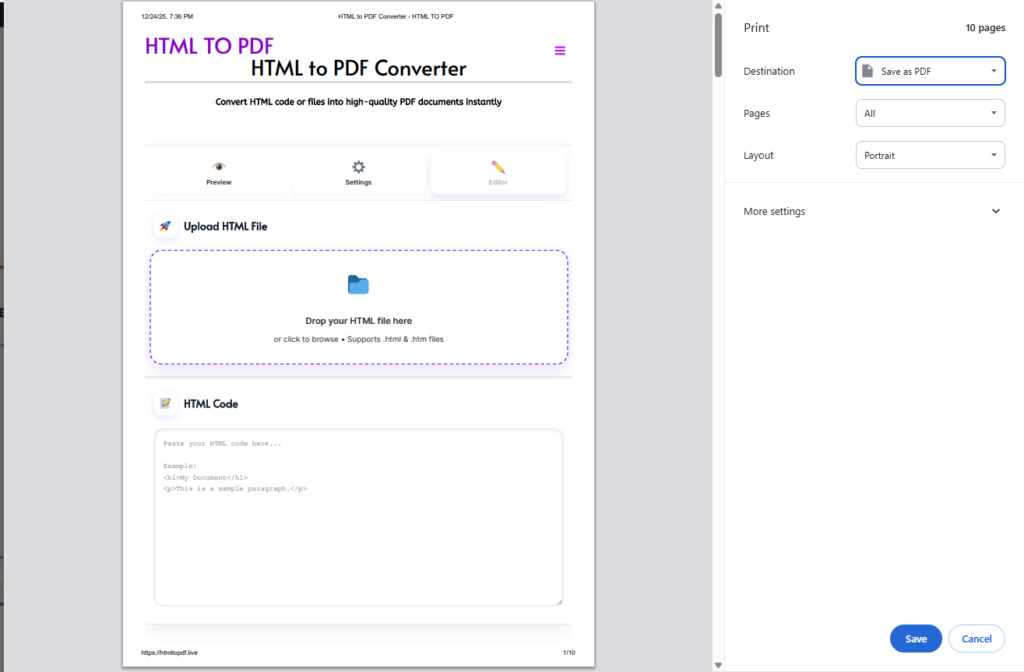
This is the quickest way to save any webpage or open an HTML file as a PDF directly from Chrome. It’s free, requires no extra tools, and works offline.
Steps to Convert HTML to PDF in Chrome:
- Open Your HTML File in Chrome:
- If you have an
.htmlfile on your computer, simply drag and drop it into a Chrome window, or right-click the file and select “Open with” → “Google Chrome.” - If you want to save a live webpage, just navigate to the URL.
- If you have an
- Open the Print Dialog:
- Click the three-dot menu (⋮) in the top-right corner of Chrome.
- Select “Print…” or use the keyboard shortcut:
Ctrl + P(Windows/Linux) orCmd + P(Mac).
- Select ‘Save as PDF’ as Your Destination:
- In the print dialog that opens, look for the “Destination” or “Printer” section.
- Click the dropdown menu and choose “Save as PDF.”
- Adjust Basic Layout Settings (Optional):
- You can change:
- Layout: Portrait or Landscape.
- Paper Size: Such as A4 or Letter.
- Margins: None, Minimum, or Custom.
- Options: Check “Background graphics” to include colors and images.
- You can change:
- Save Your PDF:
- Click the “Save” button.
- Choose a location on your computer, name your file, and click “Save” again.
That’s it! Chrome will generate a PDF from the HTML content displayed in the browser.
Method 2: Using a Dedicated Online Converter (Recommended for Quality & Control)
For more professional results—especially for local HTML files, complex layouts, or when you need custom settings—a dedicated online tool is far superior. We recommend using HTML To PDF Converter at htmltopdf.live. It works in Chrome but offers far more power and reliability than Chrome’s native printing.
Why Use an Online Converter in Chrome?
- Better Fidelity: Accurately renders complex CSS, fonts, and layouts.
- More Features: Control page size, orientation, margins, and see a live preview before converting.
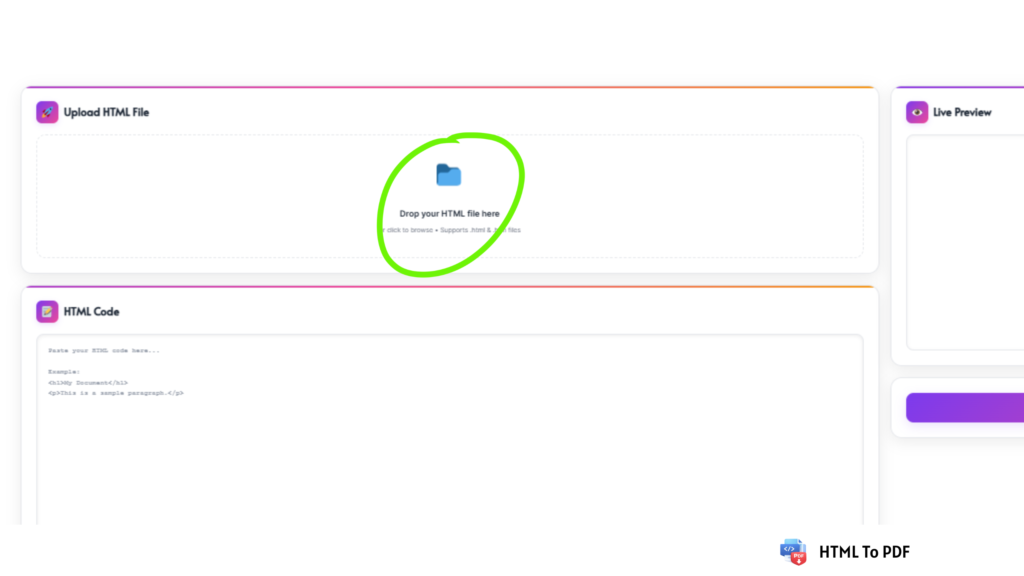
- Handles Local Files Perfectly: Upload your
.htmlfile directly, and the tool processes all linked local assets correctly. - Professional Output: Creates clean, print-ready PDFs suitable for resumes, reports, and official documents.
Steps to Convert HTML to PDF Using htmltopdf.live in Chrome:
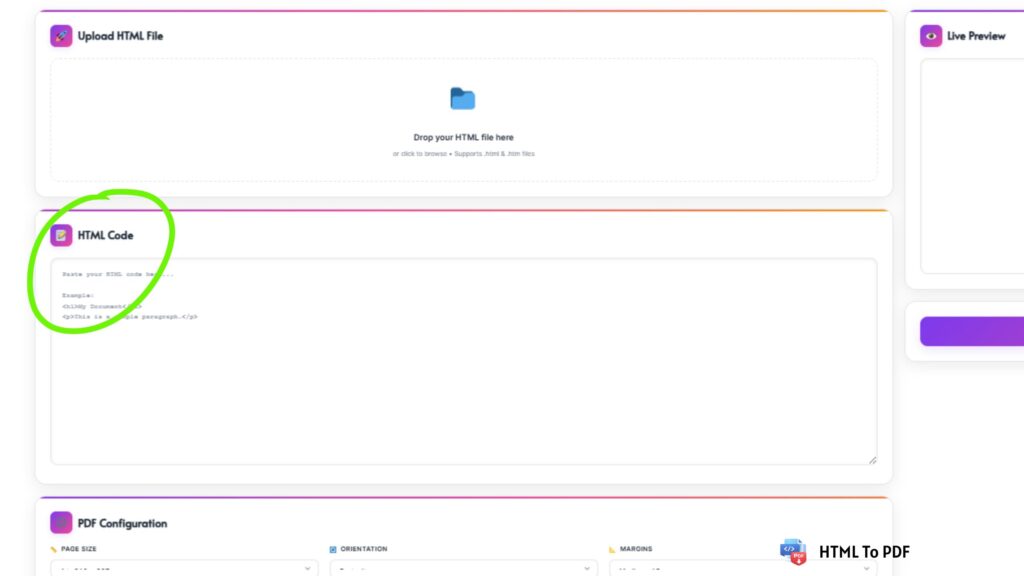
- Open the Tool: In your Chrome browser, go to htmltopdf.live.
- Input Your HTML:
- Option A – Upload File: Click “Browse” to select your
.htmlfile from your computer, or drag and drop it into the upload zone. - Option B – Paste Code: If you have the raw HTML code, paste it directly into the code editor box.
- Option A – Upload File: Click “Browse” to select your
- Configure Your PDF Settings:
- Use the settings panel to choose:
- Page Size: (e.g., A4, Letter, Legal)
- Orientation: Portrait or Landscape
- Margins: Small, Medium, Large, or Custom
- As you adjust settings, the Live Preview pane updates in real time.
- Use the settings panel to choose:
- Generate and Download:
- Click the “Convert to PDF” button.
- Within seconds, your PDF will be ready. Click “Download” to save it to your computer.
- Clear and Convert Again (Optional):
- Need another conversion? Click “Clear All” to reset the tool and start fresh.
So, how do you convert HTML to PDF in Chrome? You have two solid options:
- For speed and simplicity, use Chrome’s built-in “Print → Save as PDF.”
- For quality, control, and professional results, use a dedicated free online tool like HTML To PDF Converter directly in your Chrome browser.
While Chrome’s native method works in a pinch, the online converter approach guarantees your PDFs look exactly as intended—making it the best choice for assignments, client work, official documents, and any project where presentation matters.
Ready to create better PDFs from HTML in Chrome? Try the free, feature-rich converter at htmltopdf.live today.