If you’re a Mac user looking to turn an HTML file or webpage into a clean, professional PDF, you’re in luck. macOS offers several built-in and third-party methods to get the job done – whether you need a quick snapshot of a webpage or a polished, layout-perfect document for work or study.
In this guide, we’ll walk you through the most effective ways to convert HTML to PDF on your Mac, including our recommended Method 1 – using our free online converter at htmltopdf.live, which works seamlessly on Safari, Chrome, and other Mac browsers.
Method 1: Using Our Online HTML to PDF Converter (Recommended)
The easiest and most reliable way to convert HTML to PDF on a Mac is by using a dedicated online converter like HTML To PDF Converter by htmltopdf.live. Unlike browser-based print methods, our tool is specifically designed to handle complex layouts, preserve formatting, and provide full customization—all for free.
Why Choose Our Tool on Mac?
- Mac-Optimized: Works perfectly in Safari, Chrome, Firefox, and other macOS browsers.
- High-Fidelity Output: Accurately renders your HTML, CSS, images, and fonts—exactly as designed.
- Full Customization: Control page size, orientation, margins, and see a real-time preview.
- Local File Support: Upload
.htmlfiles directly from your Mac, and the tool processes local CSS and images correctly. - No Installation Required: Runs entirely in your browser—no downloads or software updates needed.
How to Convert HTML to PDF Using Our Tool on Mac:
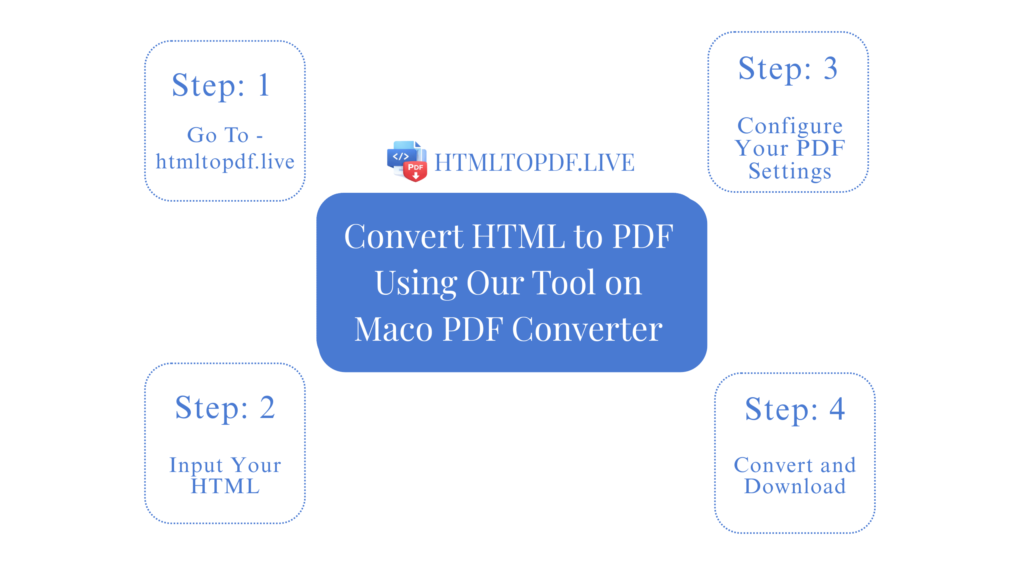
Step 1: Open the Converter
Launch Safari, Chrome, or your preferred browser on your Mac and go to:
https://htmltopdf.live
Step 2: Input Your HTML
You have two easy options:
- Upload an HTML File: Click “Browse” or drag and drop your
.htmlfile or.htmfile directly from your Mac into the upload zone. - Paste HTML Code: If you have raw HTML code, paste it directly into the code editor box.
Step 3: Configure Your PDF Settings
Use the settings panel on the left to customize your PDF:
- Page Size: Choose from A4, Letter, Legal, or other standard sizes.
- Orientation: Select Portrait or Landscape.
- Margins: Set to Small, Medium, or Large.
As you adjust settings, the Live Preview pane on the right updates in real time, so you can see exactly how your PDF will look.
Step 4: Convert and Download
When you’re satisfied with the preview, click the “Convert to PDF” button. Within seconds, your PDF will be ready. Click “Download” to save it to your Mac (Desktop, Documents, etc.).
Step 5: Convert Again (Optional)
Need another conversion? Click “Clear All” to reset the tool and start fresh.
Pros: Free, professional results, handles complex layouts, live preview, and no registration.
Cons: Requires an internet connection (for conversion processing).
Method 2: Using Safari’s Built-In Export Feature
Safari, Apple’s default browser, has a simple built-in way to save webpages as PDFs.
Steps:
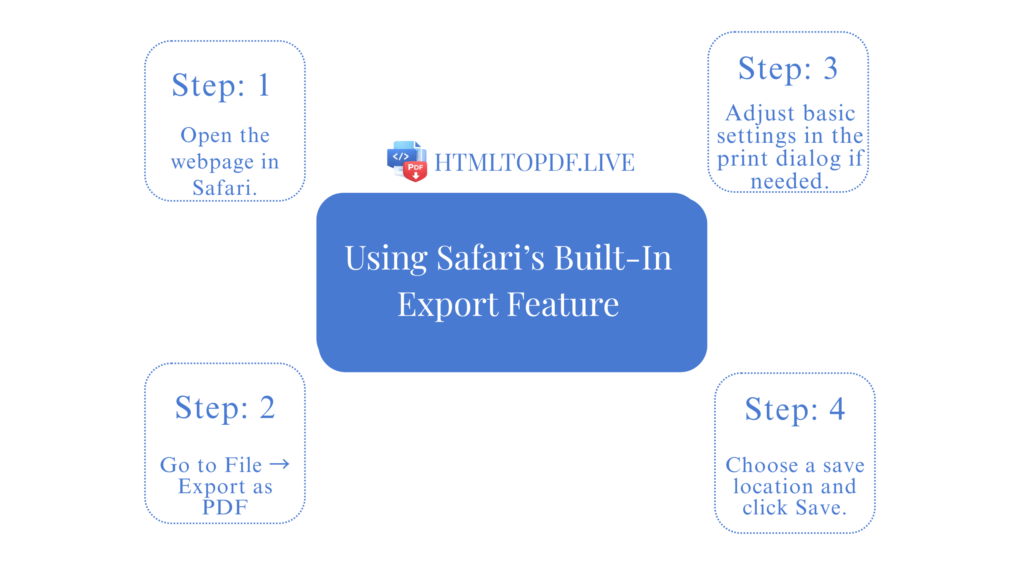
- Open the webpage in Safari.
- Go to File → Export as PDF…
- Adjust basic settings in the print dialog if needed.
- Choose a save location and click Save.
Best for: Quick saves of simple webpages.
Limitation: Struggles with complex layouts and local HTML files.
Method 3: Using Google Chrome’s Print to PDF
If you use Chrome on your Mac, you can use its built-in print-to-PDF feature.
Steps:
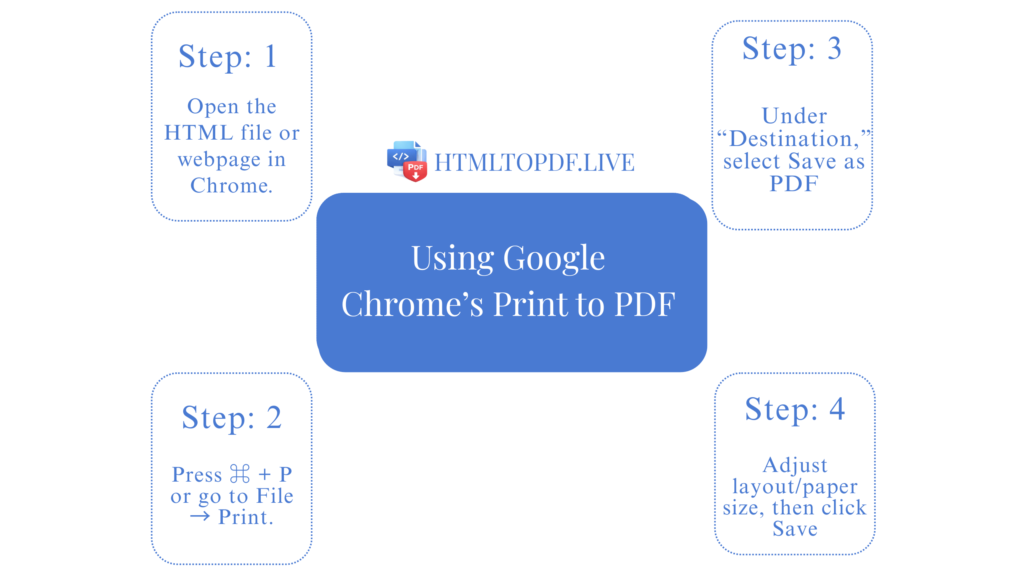
- Open the HTML file or webpage in Chrome.
- Press ⌘ + P or go to File → Print.
- Under “Destination,” select Save as PDF.
- Adjust layout/paper size, then click Save.
Best for: Quick conversions when Chrome is already open.
Limitation: Limited control, may break complex styling.
Method 4: Using Command Line (For Advanced Users)
For developers or those comfortable with Terminal, you can use wkhtmltopdf:
brew install --cask wkhtmltopdf
wkhtmltopdf input.html output.pdf
Best for: Automation and batch processing.
Limitation: Requires technical setup and command-line knowledge.
Which Method Should You Choose?
| Method | Best For | Ease of Use | Output Quality |
|---|---|---|---|
| Our Online Converter | Professional docs, local files, full control | Very Easy | Excellent, high-fidelity |
| Safari Export | Quick webpage saves | Easy | Good for simple pages |
| Chrome Print | Quick saves | Easy | Variable |
| Command Line | Automation, developers | Advanced | Very good |
Tips for Perfect HTML-to-PDF Conversion on Mac
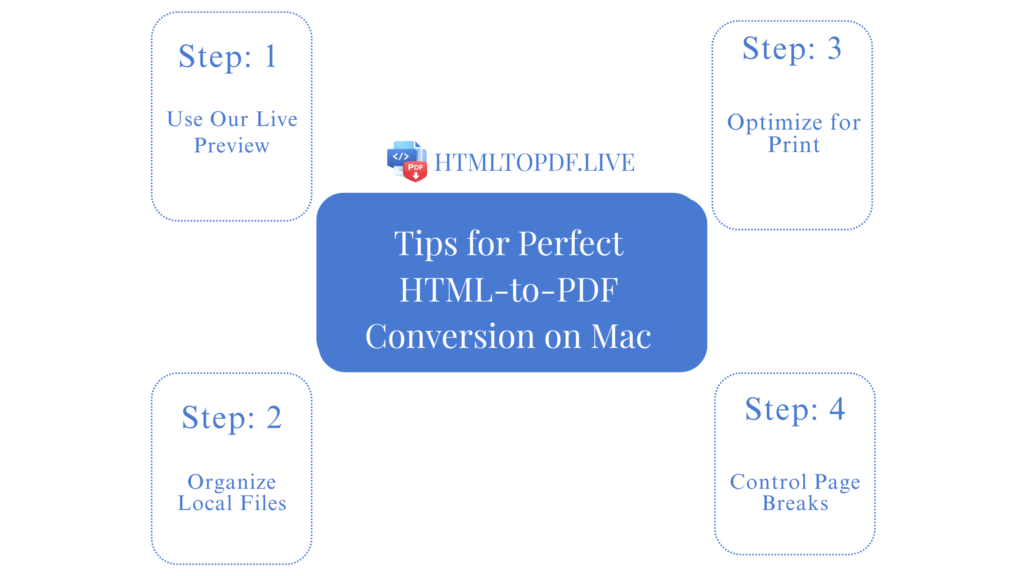
- Use Our Live Preview: Always check the live preview in our tool before converting to catch layout issues.
- Organize Local Files: If your HTML uses local CSS/images, keep them in the same folder before uploading.
- Optimize for Print: Add
@media printCSS rules to hide unnecessary elements (like navigation menus) in the PDF. - Control Page Breaks: Use CSS properties
page-break-before: always;to prevent awkward splits.
Final Thought
While Safari and Chrome offer built-in options, they often produce inconsistent results—especially with complex designs or local files. For reliable, professional-grade PDFs every time, we recommend Method 1: using HTML To PDF Converter at htmltopdf.live. It’s free, Mac-friendly, and gives you complete control over the final output.
Whether you’re saving a portfolio, archiving documentation, or preparing a report for work or school, our tool ensures your PDF looks exactly as intended—clean, polished, and ready to share.
Ready to convert HTML to PDF on your Mac? Try our free, optimized converter at htmltopdf.live today.